Main file operations in LeoPicture software
Following are descriptions of the main operations with images file as
whole in LeoPicture software application:
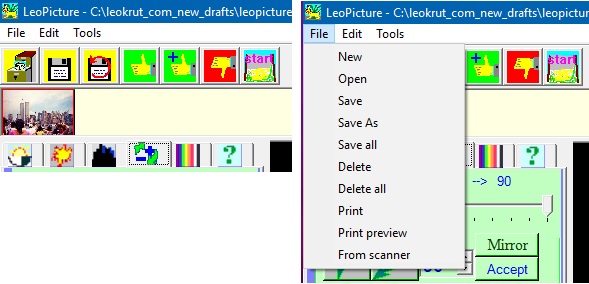
Open
The are two options to open digital photo image file - go to
Menu/File/Open or click on the button of toolbar.
The open file can be put in active area and added as a last cadre in a
array of available images.
Accept
The last changes in working image will be accepted as permanent.
The command can be executed in menu of the software or by clicking on the
toolbar button with thumb up or by clicking on corresponding links in controls
panel.
Accept plus
The last changes in working image will be accepted as permanent
with creation of new cadre. The command can be executed in menu or by
clicking on the toolbar button with thumb up and letter "+".
Paste and add
If the memory of clipboard contains a image it will be presented
as active and new cadre will be added to the array.
Create image from selection
The selected area of the image will be taken as a separate image and set as
active. The new cadre in array will be added.
Save
Current image will be saved with LeoPicture software application
on the hard drive under its current name of the file.
Save As
Current photo image image will be saved on the hard drive under
a name chosen by the user.
The image format of the digital photo file will be defined by the file
extension.
Save All
All open images will be saved on hard drive under their current names.
Delete
Current image will be removed from memory. The same effect is
performed after click on the toolbar button with thumb down.
Delete All
All images will be deleted and application will be set to its initial state,
Print
Print current image in the center of page. If size of the image
is larger than page it will be zoomed down keeping original height/width ratio.
Print Preview
The layout of printed page will be displayed to check before proceeding.
Lens view
There is a option to switch on a magnification of a part of the
image. Go to Menu/Tools/Lens and choose a grade of magnification
to activate lens view or switch it off.
Default set
Click on toolbar with "Start" image - the initial (neutral) set
of values will be restored.